
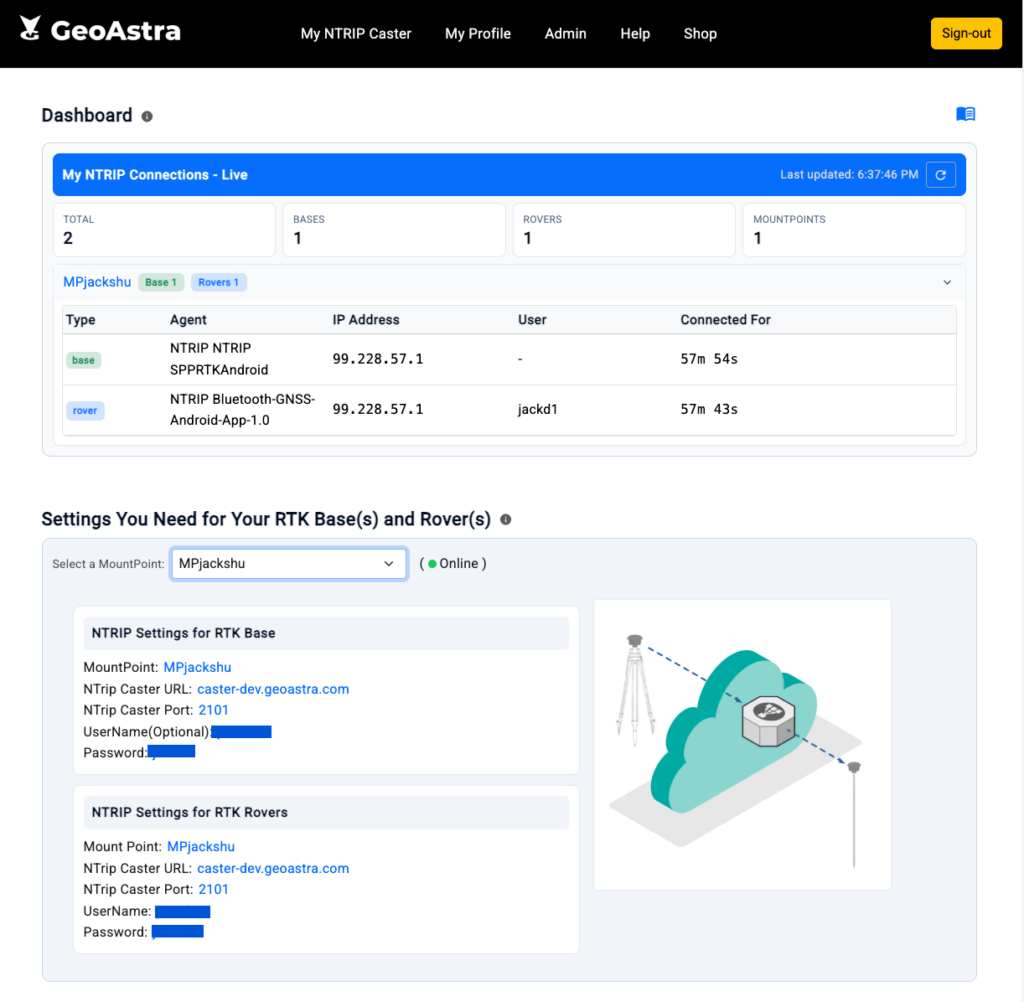
Upon your first login, a fully functional NTRIP caster mount point is automatically created for you. Our system will generate the mount point name, along with the usernames and passwords for both your RTK base and rover. Each free user account includes 1 mount point, supporting 1 RTK base connection and up to 2 rover connections. If you need additional capacity, consider upgrading your account.
The passwords here are displayed as plain text rather than being replaced by asterisks (*). This is intentional, as users need to see the actual password to enter it into their RTK device.
There are 7 menu items: Dashboard, My Profile, My Mountpoint, RTK Base Analyzer (Basic Edition), PPK Downloader (Basic Edition), My Profile, Change NTRIP Credential and License.
Dashboard #
Displays all the information you need to connect to your NTRIP caster mount point. It shows your real-time NTRIP connections to each mountpoint, including both RTK Base and RTK Rover connections.
My Mountpoint: #
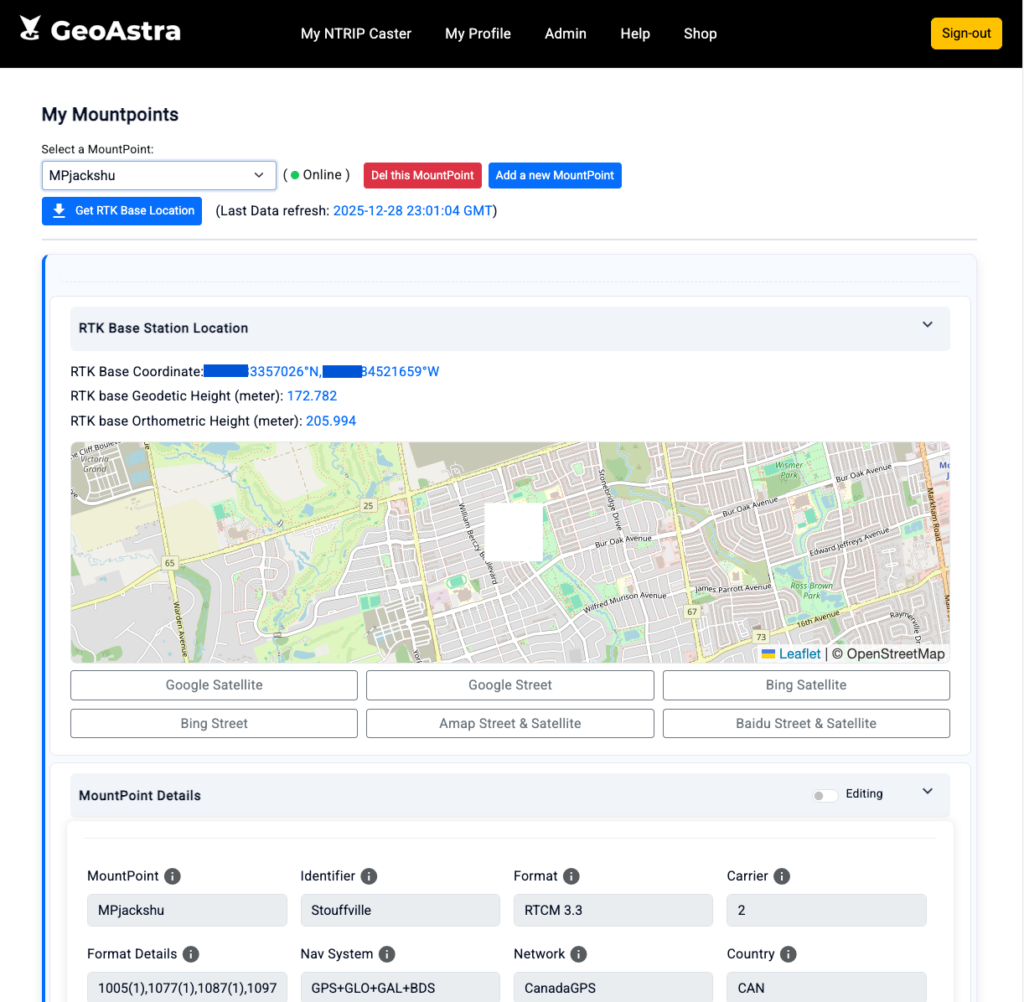
When your mountpoint is connected to an RTK Base, simply click “Refresh Data” to instantly pull the latest information. Within about two minutes, you’ll see the millimeter-level RTK Base location data displayed directly on your mountpoint page.
You can also visualize your base station’s position across multiple map platforms — including Google Maps, Bing Maps, Amap, and Baidu Maps — with one-click access to both street and satellite views.
These insights give you a clear understanding of the signal quality at your mountpoint and make it easy to verify whether your RTK Base is reporting its position accurately. By keeping a history of RTK Base locations, you can even detect whether a base station has been moved from its original location — a powerful tool for ensuring consistency and reliability.
MountPoint Details (bottom section) #
This subsection displays all mountpoint-related parameters. You can generally leave these settings unchanged, as they do not affect your NTRIP caster’s day-to-day operation. Only update them if your rover requires specific information from the source table.
To edit these fields, toggle the “Editing” switch located on the right side of the subsection title.
Important notes:
- The mountpoint name must be unique across the entire NTRIP caster.
- The latitude and longitude shown in the MountPoint Details are based on your GeoIP at the time the mountpoint was created. These are not the actual RTK Base coordinates. The true RTK Base position appears in the “RTK Base Station Location” section above. If you prefer, you may update the GeoIP coordinates to match the real RTK Base coordinates. Changing this value does not affect RTK positioning accuracy. Some NTRIP clients may use it simply to help identify the nearest available RTK base.

RTK Base Analyzer (Basic Edition) #
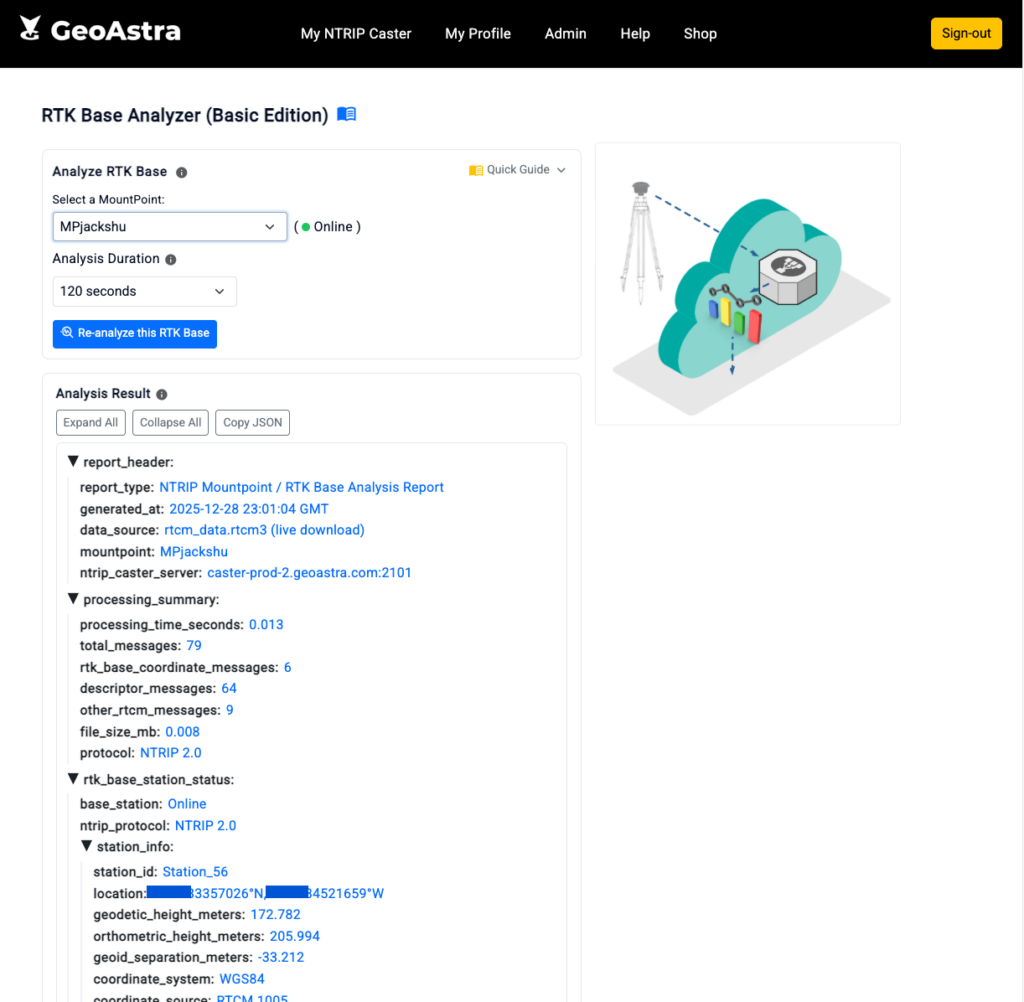
Eliminate the guesswork in your GNSS workflow with the GeoAstra RTK Base Analyzer. Built for surveyors, researchers, and precision mapping professionals, this powerful tool retrieves and analyzes RTK Base information directly from any NTRIP mountpoint.
Gain full visibility into your base station with real-time insights such as SNR readings, NTRIP protocol version, and active satellite constellations. Achieve millimeter-level accuracy with detailed horizontal and vertical positioning, track whether your base has been relocated using historical location data, and access comprehensive receiver and antenna identifiers.
With the RTK Base Analyzer, you stay in control — ensuring accuracy, consistency, and confidence in every project.
To view your RTK Base Analysis report, simply connect your RTK Base to this mountpoint and click “Analyze this RTK Base” below. This is a one-time process and typically takes less than 2–3 minutes.
Please note: the “Analyze this RTK Base” button is only available when a live RTK Base station is actively connected to this mountpoint.
PPK Downloader (Basic Edition) #
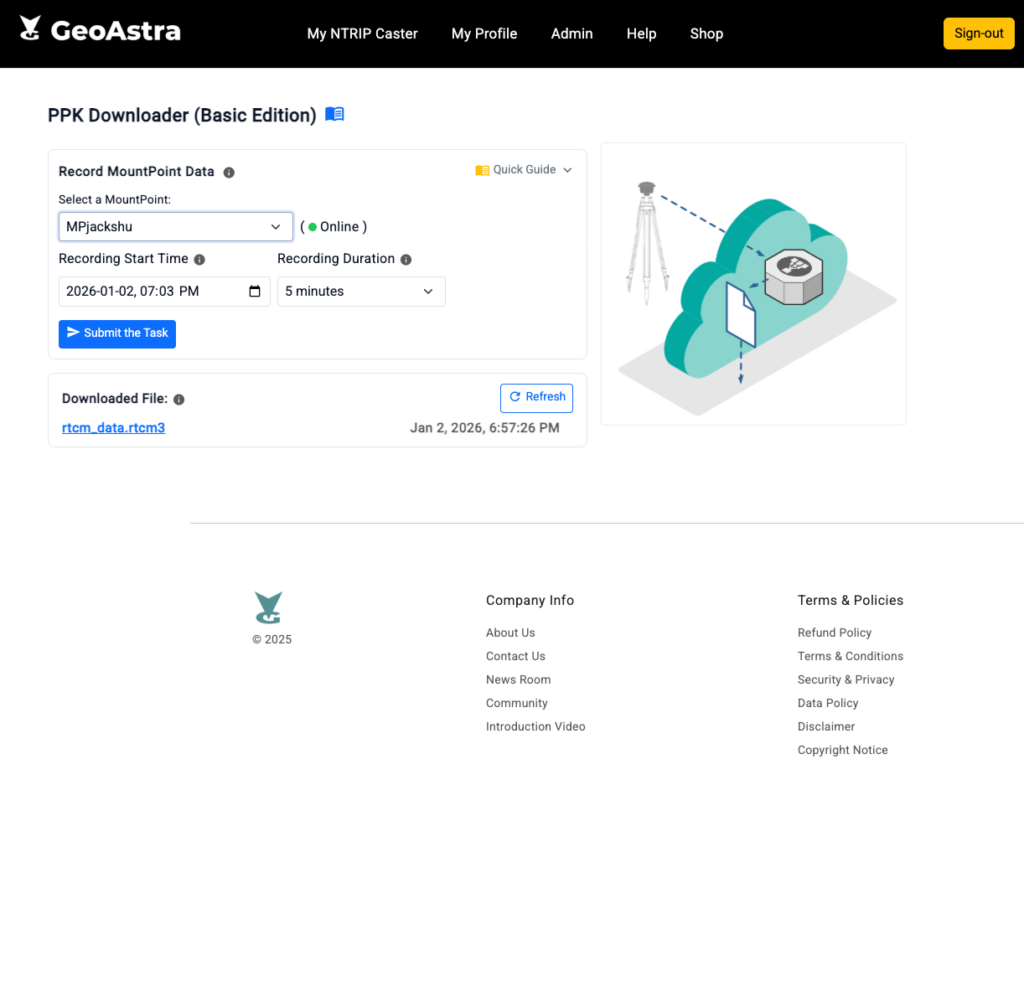
The PPK Downloader makes Post-Processed Kinematic (PPK) workflows simple and convenient. It can download RTCM data directly from your NTRIP mountpoint, allowing you to generate highly accurate PPK solutions with ease.
There’s no need to set up or maintain your own base station for PPK — just capture your rover data and retrieve the matching base data from your existing GeoAstra mountpoints.
Achieving centimeter-level accuracy has never been easier: simply bring a standalone RTK GNSS logger (for example, the Columbus EX-1 RTK GNSS data logger). No internet connection is required in the field.
PPK Downloader supports up to 24 hours of continuous data recording, with data securely stored in the cloud for 7 days. You can start a recording immediately or schedule one to match your project timeline.
Please note:
- Only one scheduled recording job is allowed at a time. Plan ahead and avoid submitting multiple overlapping jobs. If there are overlapping scheduled tasks, the newer one may be blocked by the earlier job.
- The system keeps only one download file at any time. Each new file will overwrite the previous one.
My Profile #
The My Profile page displays your account information, including:
- Profile Name
- User ID
- Maximum Mountpoints
- Maximum Clients Allowed
- Account Creation Date
- Account Enabled Status
If you would like to clear all previously downloaded NTRIP-related data stored on our system, you can use the “Clear the data I previously downloaded from my base station(s)” button.

Change NTRIP Credential #
You can update your NTRIP credentials here, including your RTK Base and Rover usernames and passwords. Please note that both usernames must be unique across our entire system. If the update fails, please try a different username.

License #
The License page displays all your currently active licenses associated with your account.
Below that, you’ll find the “Activate New License” input box, where you can paste your activation key.
For example, if you purchase a GeoAstra subscription plan from our online shops, the system will automatically generate an activation key and email it to you. Simply copy the key from the email, paste it into the activation box, and activate your subscription. After activating, please sign out and sign back in—your purchased service will then be ready to use.
License Renewal #
Your subscription does not renew automatically. To avoid service interruption, please purchase a new license key before your current one expires. After purchasing, activate the new key under My Profile → License. Once activated, the new license period will be added on top of your remaining time—you will not lose any time by renewing early.
If you do not activate a new license key before the old one expires, your subscription will be downgraded to the free plan—unless you still have another paid plan that remains active.


